
AI-Powered Image Recognition in FileMaker (Part 1 of 2)
Table of Contents
Integrating AI-powered image recognition into FileMaker unlocks entirely new ways to interact with your data. Instead of relying solely on manual tagging or rigid folder structures, you can now let the system interpret visual content and surface relevant images through search.
This is Part 1 of a two-part series. Here we’ll cover the foundations: what multi-modal embedding models are, how to configure them in FileMaker 2025, and how to generate your first image embeddings. In Part 2, we’ll build the full semantic search workflow.
What Is AI Image Recognition in FileMaker?
FileMaker 2025 introduces multi-modal embedding models — AI models that can process both text and images, converting them into numerical representations (vectors) that capture their meaning.
This means FileMaker can now:
- Understand image content without manual tagging
- Search for images using text descriptions (e.g., “find photos of damaged roofing”)
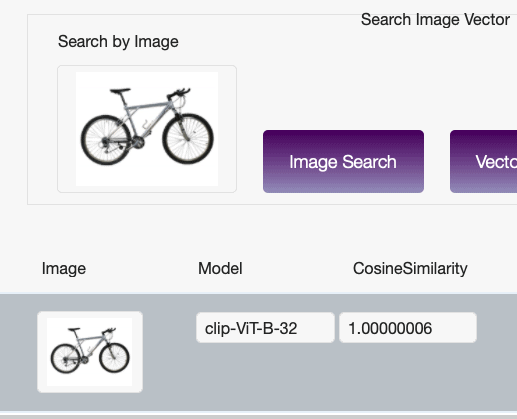
- Find visually similar images based on a reference photo
- Bridge text and visual data in a single search operation
This isn’t traditional image recognition (like a binary “is there a face in this photo?”). It’s semantic understanding — the system grasps what an image depicts at a conceptual level.
How Multi-Modal Embeddings Work
The concept is elegantly simple:
- An image is processed by the AI model
- The model outputs a vector (a list of numbers) that represents the image’s meaning
- Text can be processed by the same model into a comparable vector
- You can compare vectors to find matches between text queries and images
Because both text and images are converted to the same vector space, you can search across modalities. A text query like “red sports car” will match images of red sports cars — even if those images were never tagged or labeled.
Setting Up Your AI Model Account
Before you can generate embeddings, you need to configure an AI model account in FileMaker.
Step 1: Choose Your Provider
FileMaker 2025 supports custom model endpoints. For multi-modal embeddings, you’ll need a provider that offers CLIP-based or similar models. Common options include:
- OpenAI (text embeddings, with image support through the API)
- Custom hosted models (e.g., CLIP via a self-hosted API)
- Cloud AI services (Google, AWS, Azure)
Step 2: Configure the AI Account
Use the Configure AI Account script step:
Configure AI Account [
    Account Name: "image-embedding"
    Model Provider: Custom
    API Key: $apiKey
    Endpoint URL: $endpointUrl
]
Step 3: Set Up the AI Model
Configure the specific model you’ll use for image embeddings:
Configure AI Model [
    Model Name: "clip-embedding"
    Account: "image-embedding"
    Model Type: Multi-Modal Embedding
    Model ID: "clip-vit-base-patch32"
]
The model type must be set to Multi-Modal Embedding to support both text and image inputs.
Generating Your First Image Embedding
With the model configured, generating an embedding is straightforward:
Set Variable [ $embedding ; Value:
    AIModelEmbedding( "clip-embedding" ; Images::photo_container )
]
Set Field [ Images::embedding_vector ; $embedding ]
Commit Records/Requests
The AIModelEmbedding function:
- Takes the model name and a container field as inputs
- Sends the image to the configured model endpoint
- Returns a vector (stored as text in FileMaker)
What Gets Stored
The embedding vector is a long string of numbers — typically 512 or 768 dimensions depending on the model. It looks something like:
[0.0234, -0.1567, 0.0891, 0.2341, ...]This is what FileMaker uses for semantic comparison. You don’t need to understand the individual numbers — the model handles the meaning.
Preparing Your Data
Container Fields
Your images should be stored directly in container fields (not as external references) for most reliable embedding generation. Supported formats include JPEG, PNG, and TIFF.
Embedding Storage
Create a text field to store the embedding vector. This field should be:
- Indexed for search performance
- Large enough to hold the full vector (set to unlimited storage)
- Not displayed to users (it’s machine-readable, not human-readable)
Metadata Fields
Consider adding fields for:
- Embedding status — Has this image been processed?
- Embedding date — When was the embedding generated?
- Model version — Which model produced this embedding? (Important if you switch models later)
Responsible Use Considerations
Data Privacy
When you send images to an AI model for embedding:
- Where is processing happening? Cloud endpoints mean your images leave your server
- What does the provider do with your data? Read the terms of service carefully
- Are there sensitive images? Medical images, personal photos, or confidential documents require extra care
Model Limitations
Multi-modal models have known limitations:
- Cultural bias — Models trained primarily on Western image datasets may not perform equally well on images from other cultural contexts
- Accuracy varies — Abstract, artistic, or highly specialized images may not embed well
- No perfect matches — Semantic search returns similar results, not exact matches. Always present results as suggestions
Transparency
Document your AI image workflow:
- Which model are you using?
- Where are images processed?
- Who has access to the embedding data?
- How are search results used in decision-making?
What’s Next
In Part 2, we’ll take these embeddings and build a complete semantic image search system — including the search interface, result ranking, and practical optimization tips.
If you’re already working with AI in FileMaker and want guidance on responsible implementation, schedule a free call.
How AI Was Used in This Post
AI assisted with research, drafting, and technical content organization. All code examples were verified against FileMaker 2025 capabilities. Screenshots and implementation details reflect real testing.
Frequently Asked Questions
FileMaker 2025 uses multi-modal embedding models, such as CLIP-based models, that can process both text and images. These models convert visual content into vector embeddings that capture the image's meaning, enabling semantic search across both text and images.
That depends on your AI model provider. If you use a cloud endpoint (OpenAI, Google, AWS), images are sent to that service for processing. If you use a self-hosted model, processing stays local. Review your provider's data handling policies, especially for sensitive images.
FileMaker supports JPEG, PNG, and TIFF images stored directly in container fields. Images should be stored as actual files in the container (not external references) for the most reliable embedding generation.
Yes. Because multi-modal embedding models convert both text and images to the same vector space, you can search for images using natural language descriptions like 'sunset over water' or 'team meeting in conference room.' Part 2 of this series covers building the full search workflow.
Is your team ready for AI in FileMaker?
Our free AI Readiness Guide walks you through the key questions to answer before your first AI project.
Get the AI Readiness GuideExplore Related Services
Related Posts

AI FileMaker Lexicon: Essential Glossary for FileMaker Users
Clear definitions of the AI and FileMaker terms your team will encounter when building AI-powered solutions.
Read article →
Responsible AI Use in FileMaker 2025
Explore how FileMaker 2025 puts AI front and center, and why understanding it is more important than ever. AI literacy and responsible implementation practices for FileMaker developers.
Read article →
AI-Powered Image Recognition in FileMaker (Part 2)
Discover how AI image recognition in FileMaker Pro 2025 enhances image search with semantic capabilities, streamlining workflows for developers and businesses.
Read article →